


Updated on
Localizing a Blazor WebAssembly app takes three things: .resx resource files holding the translated strings, IStringLocalizer<T> injected wherever those strings are used, and a CultureInfo set before the app renders.
The third one is what makes Blazor WebAssembly different from a server-rendered app. The culture has to be established while the host is being built and before the first component runs, which is why the culture picker reloads the page rather than simply re-rendering it.
What Is the Difference Between Globalization and Localization?
Globalization is building an application capable of working in any culture. Localization is supplying the content for a specific one.
Globalization is the engineering half. It means no hard-coded strings, no assumptions about date order or decimal separators, and no layouts that break when a translation runs longer than the English.
Localization is the content half: the .resx file with German translations, the currency symbol, the date format that a reader in that culture expects.
The distinction matters because the work happens at different times and by different people. Globalization is done once, by developers, when the application is built. Localization is done repeatedly, often by translators, for each culture added.
Internationalization is the umbrella term covering both, usually abbreviated to i18n, for the eighteen letters between the first and the last.
.NET carries both through CultureInfo: CurrentCulture governs formatting, and CurrentUICulture governs which resource file is chosen.
CultureInfo carries this in Blazor WebAssembly exactly as it does everywhere else in .NET. Two properties do the configuring: CultureInfo.DefaultThreadCurrentCulture sets the default culture and CultureInfo.DefaultThreadCurrentUICulture sets the default UI culture.
The same CultureInfo machinery drives localization in ASP.NET Core on the server, where request culture providers and middleware select the culture from the incoming request instead.
How Do We Implement Blazor Localization in WebAssembly?
Three pieces, in this order.
Add the localization services. builder.Services.AddLocalization() in Program.cs registers IStringLocalizer<T> with the container.
Add the resource files. A .resx per culture, named after a shared type: Resource.resx for the fallback and Resource.de.resx for German, with the same keys in each and matching values.
Inject the localizer where the strings are used. @inject IStringLocalizer<Resource> localizer in a component, then @localizer["welcome"] in place of the hard-coded text. The key is looked up in the file matching the current UI culture, falling back to the neutral file when it is missing. Missing from both, it returns the key itself rather than throwing.
Nothing here is Blazor-specific except where it runs. IStringLocalizer<T> and .resx files are the same mechanism an ASP.NET Core application uses on the server. Only the culture-setting step differs.
That is a working localized app, but it follows the browser’s language preference and gives the user no say. Letting them choose is a separate job, and it is the rest of this article.
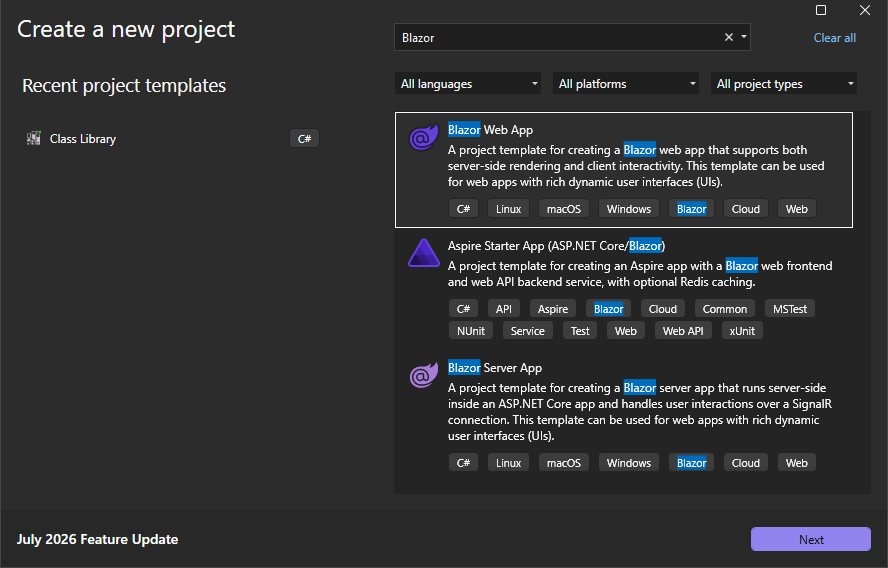
The first thing we are going to do is to create a new Blazor WebAssembly application:
As soon as we start the app, we are going to see the Home page with a couple of messages:
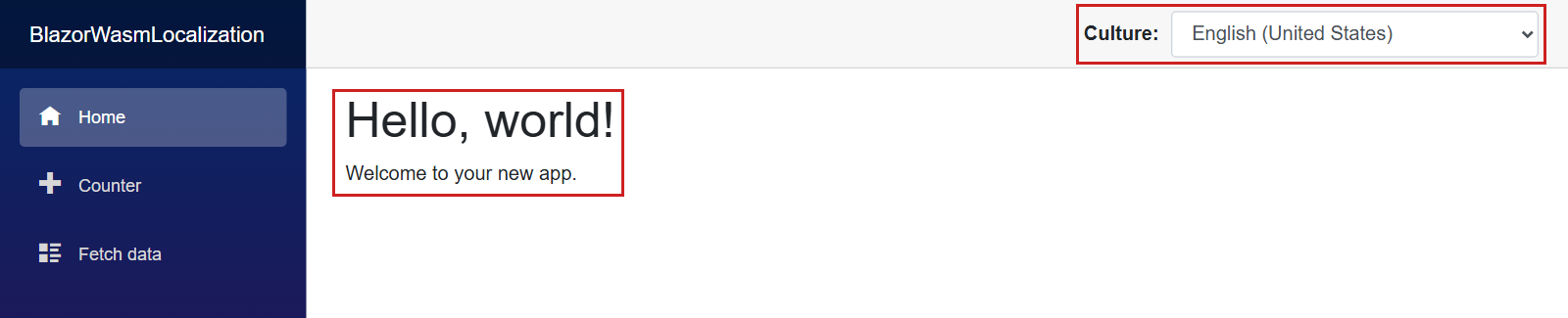
We are going to localize the two selected sentences. This will be enough to show how you can do it for the entire application.
So, let’s get to work.
The first thing we have to do is to install the Microsoft.Extensions.Localization package:
Install-Package Microsoft.Extensions.Localization
After the installation, we are going to register services for application localization. To do that, we are going to modify Program.cs:
var builder = WebAssemblyHostBuilder.CreateDefault(args);
builder.RootComponents.Add<App>("#app");
builder.RootComponents.Add<HeadOutlet>("head::after");

builder.Services.AddScoped(sp => new HttpClient { BaseAddress = new Uri(builder.HostEnvironment.BaseAddress) });
builder.Services.AddLocalization();

await builder.Build().RunAsync();
At this point, we need a place to store our localization resources. There are several ways to do that, and we use resource (.resx) files.
Working with Resource Files
So, let’s create a new ResourceFiles folder under the Shared folder, and let’s create two resource files inside it:
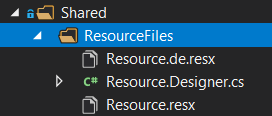
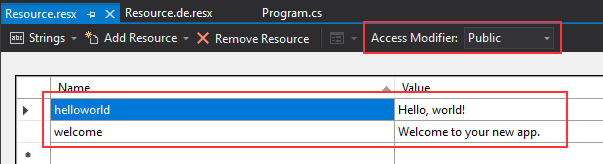
The Resource.resx file will store the English translations and the Resource.de.resx will hold the German translations. The resource files store the translations as key-value pairs, so let’s modify them in such a manner.
First, let’s modify the Resource.resx file:
And then the other one:
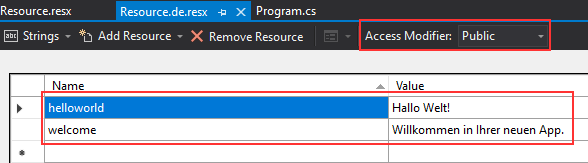
So, we have key-value pairs in both files, and both files have a public access modifier.
After these modifications, we can add the required using directives in the _Imports.razor file:
@using BlazorWasmLocalization.Shared.ResourceFiles
@using Microsoft.Extensions.Localization
And then, we can modify the Home.razor file:
@page "/"
@inject IStringLocalizer<Resource> localizer

<PageTitle>Home</PageTitle>

<h1>@localizer["helloworld"]</h1>

@localizer["welcome"]
Here we inject the IStringLocalizer service to provide localized strings. As you can see, we provide the Resource class for the type because this is the class that contains localized strings. Then, instead of the hard-coded strings, we use the localizer variable and provide a key, which is a key from the resource file. Of course, this will return a value from the same resource file.
Now if we start the application, we are going to see the same result, but this time our strings are localized. Of course, if we open the browser settings and set the second language as the first one:
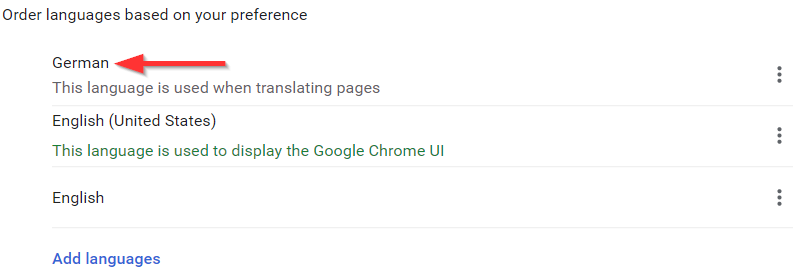
And reload the page, we are going to see a different result:
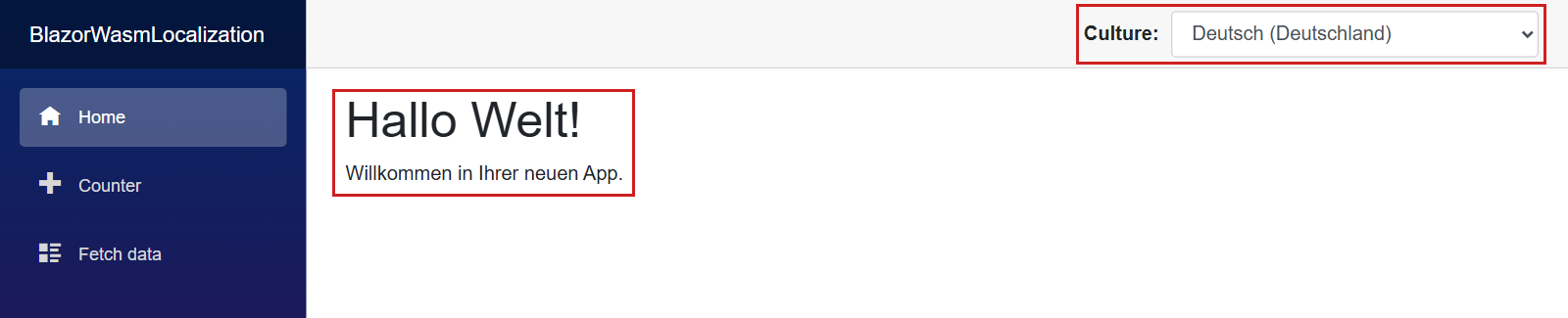
Excellent.
But if we want to enable our users to choose the culture from the application, we have to implement a different logic.
Creating UI for Choosing the Culture
Let’s start by creating a new CultureSelector component (both razor and razor.cs files) under the Shared folder.
We are going to modify the razor file first:
<strong>Culture:</strong>

<select class="form-control" @bind="Culture" style="width:300px; margin-left:10px;">
    @foreach (var culture in cultures)
    {
        <option value="@culture">@culture.DisplayName</option>
    }
</select>
We create a select element and bind it to the Culture property and also for each supported culture, we create a select option. Of course, we are missing the Culture property and the cultures collection, so let’s add it to the razor.cs file:
public partial class CultureSelector
{
    [Inject]
    public NavigationManager NavManager { get; set; } = default!;

    [Inject]
    public IJSRuntime JSRuntime { get; set; } = default!;

    CultureInfo[] cultures = new[]
    {
        new CultureInfo("en-US"),
        new CultureInfo("de-DE")
    };

    CultureInfo Culture
    {
        get => CultureInfo.CurrentCulture;
        set
        {
            if (CultureInfo.CurrentCulture != value)
            {
                var js = (IJSInProcessRuntime)JSRuntime;
                js.InvokeVoid("blazorCulture.set", value.Name);

                NavManager.NavigateTo(NavManager.Uri, forceLoad: true);
            }
        }
    }
}
Before we start explaining this code, we need to add three using statements:
using Microsoft.AspNetCore.Components;
using Microsoft.JSInterop;
using System.Globalization;
Now we can explain the code.
First, we inject two services, the NavigationManager and IJSRuntime. Both are properties rather than constructor parameters, which is why they carry the = default!; initializer: the framework assigns them after construction, and that idiom tells the compiler so.
Then, we create a cultures array with two supported cultures – en-US and de-DE. Also, we create a missing Culture property of the CultureInfo type. This property returns the current culture used in the application. Also, when we select a new culture in our drop-down list, this property does some logic in the set part. We first check if the current culture is different than a selected one. If it is, we use JSInterop to invoke the Javascript’s blazorCulture object with a set accessor that sets the culture name in the local storage. Finally, we use the NavigationManager to navigate the user to the requested URI and use the forceLoad parameter to reload the page.
A property setter that reloads the page is unusual, and the reload is deliberate: the culture has to be set before the host builds, so changing it means starting over. Once we reload the app, the logic from Program.cs triggers and sets the new culture as the default one.
Of course, we don’t have that logic yet, so let’s add it.
Setting the Default Culture for the Application
First, let’s create a new Extensions folder and inside it a new WebAssemblyHostExtension class:
public static class WebAssemblyHostExtension
{
    public async static Task SetDefaultCulture(this WebAssemblyHost host)
    {
        var jsInterop = host.Services.GetRequiredService<IJSRuntime>();
        var result = await jsInterop.InvokeAsync<string>("blazorCulture.get");

        CultureInfo culture;

        if (result != null)
            culture = new CultureInfo(result);
        else
            culture = new CultureInfo("en-US");

        CultureInfo.DefaultThreadCurrentCulture = culture;
        CultureInfo.DefaultThreadCurrentUICulture = culture;
    }
}
We create this extension class and method to remove the extra logic from Program.cs. In this extension method, we extend the WebAssemblyHost type and use JSInterop to call the get accessor from the blazorCulture Javascript object. This get accessor will return the culture name from the locale storage. If the name is returned, we create a new CultureInfo object with that name, otherwise, we create a new CultureInfo object with the en-US as a parameter. Finally, we set the DefaultThreadCurrentCulture and the DefaultThreadCurrentUICulture properties to the created culture.
Of course, we need a few using directives for this to work:
using Microsoft.AspNetCore.Components.WebAssembly.Hosting;
using Microsoft.Extensions.DependencyInjection;
using Microsoft.JSInterop;
using System.Globalization;
using System.Threading.Tasks;
Now, we can modify Program.cs:
var builder = WebAssemblyHostBuilder.CreateDefault(args);
builder.RootComponents.Add<App>("#app");
builder.RootComponents.Add<HeadOutlet>("head::after");

builder.Services.AddScoped(sp => new HttpClient { BaseAddress = new Uri(builder.HostEnvironment.BaseAddress) });
builder.Services.AddLocalization();

var host = builder.Build();

await host.SetDefaultCulture();

await host.RunAsync();
Good.
The only thing left is to modify the index.html file, to add the Javascript object that we call to get and set the culture name in the local storage:
<body>
    <div id="app">
        <svg class="loading-progress">
            <circle r="40%" cx="50%" cy="50%" />
            <circle r="40%" cx="50%" cy="50%" />
        </svg>
        <div class="loading-progress-text"></div>
    </div>

    <div id="blazor-error-ui">
        An unhandled error has occurred.
        <a href="." class="reload">Reload</a>
        <span class="dismiss">🗙</span>
    </div>
    <script src="_framework/blazor.webassembly#[.{fingerprint}].js"></script>
    <script>
        window.blazorCulture = {
            get: () => localStorage['BlazorCulture'],
            set: (value) => localStorage['BlazorCulture'] = value
        };
    </script>
</body>
Just to mention, if you want, you can create a new Javascript file and move this logic in that file. For example sake, it could stay here.
Lastly, we have to include our new component instead of the About link in the MainLayout.razor file, which current templates place in the Layout folder:
<div class="page">
    <div class="sidebar">
        <NavMenu />
    </div>

    <main>
        <div class="top-row px-4">
            <CultureSelector />
        </div>

        <article class="content px-4">
            @Body
        </article>
    </main>
</div>
Adding BlazorWebAssemblyLoadAllGlobalizationData to the Project File
Blazor WebAssembly ships only the ICU data for the app’s own culture by default, because every culture the browser might need is a payload the browser has to download.
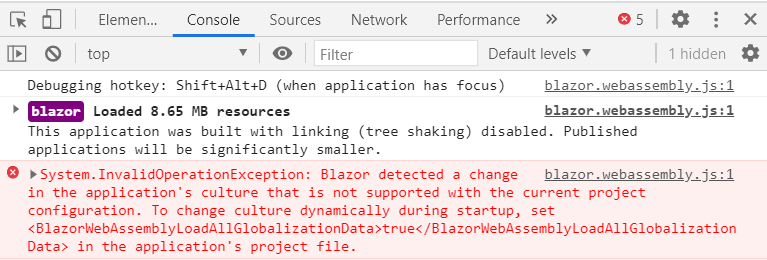
That trimming is why a culture picker can throw at runtime. The app asks for a culture whose data is not in the bundle, and the exception says so.
Setting BlazorWebAssemblyLoadAllGlobalizationData to true in the project file includes the full ICU data, and every culture then works. It is one line, and it is the fix the error message is pointing at.
The cost is download size. Full globalization data is a meaningful addition to a WebAssembly payload, and on an app supporting two cultures it is mostly waste.
The opposite extreme is InvariantGlobalization, which strips culture data entirely and formats everything the invariant way: smallest download, and no localization at all.
Between them sits BlazorIcuDataFileName, which names one ICU file to load, and since .NET 8 that file can be a custom one.
Microsoft’s Blazor globalization guidance states that default in one line: “By default, Blazor loads a subset of globalization data that contains the app’s culture.”
The exception the app raises when the requested culture is missing from the bundle looks like this:
The fix is one line in the project file:
<Project Sdk="Microsoft.NET.Sdk.BlazorWebAssembly">

    <PropertyGroup>
        <TargetFramework>net10.0</TargetFramework>
        <BlazorWebAssemblyLoadAllGlobalizationData>true</BlazorWebAssemblyLoadAllGlobalizationData>
    </PropertyGroup>

    ...

</Project>
That property is one of four ways to control how much globalization data ships:
| MSBuild property | Set it to | What the app gets | Cost |
|---|---|---|---|
| (nothing set) | Not applicable | The ICU file matching the app's own culture: icudt_EFIGS.dat for en-US, icudt_CJK.dat for zh-CN | Baseline |
BlazorWebAssemblyLoadAllGlobalizationData | true | Full ICU data for every culture | Largest download |
BlazorIcuDataFileName | A file name | One named ICU file instead of the culture-matched default: a stock shard, or a custom file the developer builds (.NET 8 and later) | Between the two |
InvariantGlobalization | true | No culture data at all; every culture behaves as invariant | Smallest download |
Values read from Microsoft’s ASP.NET Core Blazor globalization and localization guidance on 9 August 2026, which names icudt_EFIGS.dat for en-US and icudt_CJK.dat for zh-CN, and records that <BlazorIcuDataFileName> accepts a single file, custom files included, from .NET 8.
Download size is the whole trade-off here, and it is also what ahead-of-time compilation and payload size is about, so that is the natural next thing to read.
With the property set, the app starts with the en (US) culture selected and switching the selector to de (DE) swaps the strings, exactly as the two home-page captures above show.
Conclusion
In this article, we have learned:
- More about the Globalization and Localization
- How to implement Localization in Blazor WebAssembly applications
- How to enable users to change the culture from the app
Localized labels are only half of a localized UI, so our guide on building and validating Blazor forms is a sensible next step once the strings come from resource files.
Until the next article.
Best regards.
Tested with .NET 10.0.10.

Excellent article. I’m trying to figure out if it’s possible to edit the .resx files after the app is published (and without another compilation). The answer appears to be no, but I’d like to be sure. Thanks.
Hi Paul. Even though I never tried to do that, I think you are correct. If there is any option to do that, then I am not aware of it.
Is there some way to pass the localization setting into the server part of the WASM application. For example, I have HomeController with constructor
public HomeController(IHomeService systemService, IStringLocalizer<Resource> localizer)
{
      this.systemService = systemService;
      this.localizer = localizer;
}
And in some point when I access some API Action, I am not able to access the resource file with the target key, for example:
The value which I received is alway the English one.
Regards,
Simeon
Can you point me to an example about localizing MudGrid
I am sorry. I really never did anything similar with it.
Many thanks !
Only issue for me was not able to find blazorCulture but was easy fix form JS like this, adding the “autostart=”true”
<script autostart=”true”>
window.blazorCulture = {
get: () => localStorage[‘BlazorCulture’],
set: (value) => localStorage[‘BlazorCulture’] = value
};
</script>
Thank you too for sharing your solution.
Thanks for Share, works like a charm
Thanks for the comment. All the best.
can you please do and share this for a pre-rendering enabled application!
problem 1 i am facing running this code
in Program.cs
await host.SetDefaultCulture();
WebAssembly host does not contain a definition for SetDefaultCulture
Maybe try looking at this issue on our GitHub repo for this article. Using sync version may help. https://github.com/CodeMazeBlog/blazor-wasm-localization/issues/1
Changing this line to the following, works:
var result = await jsInterop.InvokeAsync
if (result != null)
{
var culture = new CultureInfo(result);
CultureInfo.DefaultThreadCurrentCulture = culture;
CultureInfo.DefaultThreadCurrentUICulture = culture;
}
Thanks for sharing your solution.
does that do anything to the url like adding “domain.com/{en-us}/page” or just load the strings and apply it?
Hello Ahmed. No, it doesn’t add anything to the URI. It just load a new localization and display it on the page. You can always download our source code and run it.