


Updated on
Reverting an EF Core migration usually takes two commands, and the order matters. dotnet ef database update <PreviousMigration> undoes the migration in the database, and dotnet ef migrations remove then deletes its files from the project.
Running them the other way round fails. EF Core refuses to remove a migration that the database still has applied, because the code that knows how to undo it is the code we are about to delete. If you need a refresher on the basics, our Entity Framework Core and Data Access page collects our articles on building and applying migrations.
A migration therefore lives in two places at once: as files in the Migrations folder, and as a row in the database’s __EFMigrationsHistory table. Apart from the read-only dotnet ef migrations list, each migration command below changes the files, the history row, or both.
Create a New Project with EF Core
Let’s set ourselves up by creating a new .NET project using the dotnet CLI:
dotnet new console --name RevertMigration
Inside the new RevertMigration folder, we will add the Entity Framework Core package from NuGet. EF Core supports several database types, but for simplicity, we’ll use SQLite:
dotnet add package Microsoft.EntityFrameworkCore.Sqlite
Add DB Context and Entity Models
Now that we have EF Core installed, let’s create some entity models and add them to a data context. First, we’ll create an Airplane class:
public class Airplane
{
    public int Id { get; set; }
    public string? TailNumber { get; set; }
    public int? NumberOfEngines { get; set; }
    public double? MaxAirSpeed { get; set; }
    public bool? RunsOnJetFuel { get; set; }

    public int? HangarId { get; set; }
    public Hangar? Hangar { get; set; }
}
Next, let’s create a Hangar to park our planes:
public class Hangar
{
    public int Id { get; set; }
    public string? HangarNumber { get; set; }

    public List<Airplane> Airplanes { get; } = new();
}
And finally, let’s create our DbContext:
using Microsoft.EntityFrameworkCore;

public class AirportDbContext : DbContext
{
    public DbSet<Airplane> Airplanes { get; set; }
    public DbSet<Hangar> Hangars { get; set; }

    public string DbPath { get; }

    public AirportDbContext()
    {
        var folder = Environment.SpecialFolder.LocalApplicationData;
        var path = Environment.GetFolderPath(folder);
        DbPath = Path.Join(path, "airport.db");
    }

    protected override void OnConfiguring(DbContextOptionsBuilder options)
        => options.UseSqlite($"Data Source={DbPath}");
}
We’ll run the following commands to install EF Core Tools, then scaffold and apply our first migration:
dotnet tool install --global dotnet-ef
dotnet add package Microsoft.EntityFrameworkCore.Design
dotnet ef migrations add Init
dotnet ef database update
If you have not created a migration before, we cover creating and applying EF Core migrations in detail.
Great, now we have a database! Let’s replace the code in Program.cs to add a new hangar and an airplane, saving them to our database as we go:
using var db = new AirportDbContext();

Console.WriteLine("Inserting a new hangar");
db.Add(new Hangar
{
    HangarNumber = "HANGAR_01"
});
db.SaveChanges();

var hangar = db.Hangars
    .OrderBy(h => h.Id)
    .Last();
Console.WriteLine($"Just created hangar: {hangar.HangarNumber}");

Console.WriteLine($"Inserting a new airplane");
hangar.Airplanes.Add(new Airplane
{
    TailNumber = "ABC123",
    MaxAirSpeed = 300,
    RunsOnJetFuel = true
});
db.SaveChanges();

var airplane = db.Airplanes
    .OrderBy(a => a.Id)
    .Last();
Console.WriteLine($"Just created airplane: {airplane.TailNumber} in hangar: {hangar.HangarNumber}");
We’ve included queries to check that our entities are saved to the database, and we print the output:
Inserting a new hangar
Just created hangar: HANGAR_01
Inserting a new airplane
Just created airplane: ABC123 in hangar: HANGAR_01
Add a New Migration
Database schemas often change as our project evolves. Let’s make some changes to the entity model and scaffold a new migration to update the database. We’ll add a new property HasDoors to our Hangar class:
public class Hangar
{
    ...

    public bool HasDoors { get; set; }

    ...
}
Then we’ll use the dotnet CLI to apply the new migration to the database:
dotnet ef migrations add Hangar_HasDoors
dotnet ef database update
Our Migrations folder now has a second migration. We’ve also applied those changes to the database schema.
Why Won’t EF Core Remove a Migration We Already Applied?
EF Core refuses because the migration exists in two places: in our project and in the database’s migration history. dotnet ef migrations remove deletes files and rewinds the model snapshot. It does not touch the schema. Deleting the file would leave the database holding a change no code can undo.
So the tool stops and tells us so:
The migration '20231209231131_Hangar_HasDoors' has already been applied to the database. Revert it and try again. If the migration has been applied to other databases, consider reverting its changes using a new migration instead.
The command exits with a non-zero code and changes nothing.
The last sentence of that message points at two different cases. On our own development database, we revert and remove. On a database anyone else has run the migration against, we keep the migration and write a corrective one instead.
The fix on a local database is the database update command, targeting the migration we want the database to return to.
Let’s see the refusal in our project. Say we find something wrong with the migration we just created. We can make another change and create a third migration, but that’s going to make our migration history messy. Instead, it will be better to remove it and create a new, correct one, so we try to remove it:
dotnet ef migrations remove
But, no! We’re not allowed to remove this migration because it has already been applied to the schema:
The migration '20231209231131_Hangar_HasDoors' has already been applied to the database. Revert it and try again. If the migration has been applied to other databases, consider reverting its changes using a new migration instead.
How Do We Roll Back an Applied Migration?
The good news is, there’s an easy way to deal with this. EF Core allows us to revert one or more migrations by running the database update command targeting an earlier migration:
dotnet ef database update Init
The key here is specifying the target migration “Init” so that EF will roll back any later migrations:
Acquiring an exclusive lock for migration application. See https://aka.ms/efcore-docs-migrations-lock for more information if this takes too long.
Reverting migration '20231209231131_Hangar_HasDoors'.
Done.
Then we will remove the last migration:
dotnet ef migrations remove
Removing migration '20231209231131_Hangar_HasDoors'.
Reverting the model snapshot.
Done.
It’s also possible to revert to an even earlier migration and then run dotnet ef migrations remove multiple times to remove more than one migration.
EF Core 10 no longer runs all the migrations of one command inside a single transaction, a change listed in What’s New in EF Core 10. When we made one Down method fail in the middle of a three-migration revert on SQLite, the migration reverted before the failure stayed reverted, so check dotnet ef migrations list after a failed revert.
That’s it! Once we’ve removed the faulty migration, we can make changes to our model and add a new migration to replace it.
Which Commands Revert, Remove and Roll Back Migrations?
Four commands cover everything, and they split cleanly by what they touch.
dotnet ef database update <Name> sets the database to the state that migration left it in. Targeting an older migration runs the Down method of every migration newer than it, in reverse. Microsoft’s reference describes the target as the state the database should be in afterwards, so if the database is at a newer migration, the command reverts every migration newer than the target.
dotnet ef database update 0 is the same command with a special target that means “before the first migration”, so it reverts all of them.
dotnet ef migrations remove deletes the latest migration’s files and rewinds the snapshot. It removes only the latest one.
dotnet ef migrations remove --force does both jobs: it reverts the migration in the database and then deletes the files.
That last one is the command to be careful with, and the next section is about when not to reach for it.
The wording on the target comes from the Update-Database entry in Microsoft’s Package Manager Console reference, which says the command “doesn’t apply one older migration out of order”.
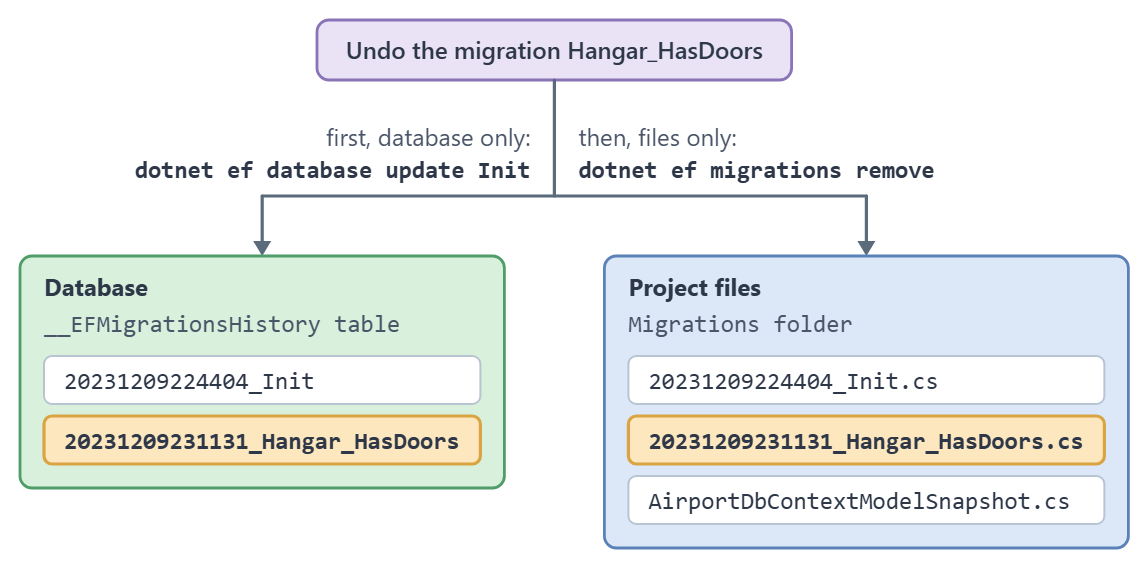
The figure splits our Hangar_HasDoors migration into its two halves, in amber, and shows which command reaches each one:
The table lists each command in both the .NET CLI and the Visual Studio Package Manager Console, with what it changes:
| Goal | .NET CLI | Package Manager Console | What it changes |
|---|---|---|---|
| Apply every pending migration | dotnet ef database update | Update-Database | Database only |
| Revert back to a named migration | dotnet ef database update Init | Update-Database Init | Database only |
| Revert every migration | dotnet ef database update 0 | Update-Database 0 | Database only |
| Delete the last migration's files | dotnet ef migrations remove | Remove-Migration | Files only, and it refuses if the migration is still applied |
| Revert the last migration and delete its files in one step | dotnet ef migrations remove --force | Remove-Migration -Force | Database and files |
| List the migrations and see which are pending | dotnet ef migrations list | Get-Migration | Nothing, it reads |
Only the --force row touches both halves at once. Apart from the read-only list row, every other row changes either the database or the files, which is why the safe order from the start of this article is to move the database first and the files second.
When Should We Add a Corrective Migration Instead?
Reverting rewrites the migration history, which is only safe while nobody else has that history.
On a local development database, reverting and removing is the right move. The migration was never anywhere else, so deleting it costs nothing.
On a shared, test or production database it is the wrong move. Microsoft’s guidance is to keep the migration in the project and add a new corrective migration, because a teammate whose database already ran it no longer has the code that undoes it, and any later migration that assumed the change may break.
So what decides it is where the migration has been. Applied only locally: revert and remove. Applied anywhere shared: add a migration that fixes the mistake, and let both migrations ship.
If a planned rollback really is needed on a deployed database, run it while the original migration code is still in the project, and coordinate the application deployment with it.
That guidance is in Microsoft’s Managing Migrations documentation, under the shared-database case. For scripts, bundles and the other ways to apply schema changes to a deployed database, see our article on running EF Core migrations in production.
Conclusion
In this article, we learned how to revert a migration that has already been applied to the database. We must first call dotnet ef database update targeting a previous migration. Once we’ve reverted the migration, we can safely remove it by calling dotnet ef migrations remove.
Tested with .NET 10.0.10 and EF Core 10.0.12.