


Updated on
dotnet build compiles the project and leaves the output in bin/, ready to run on the machine that built it. dotnet publish compiles it too, then gathers everything the app needs to run somewhere else into a self-contained folder under bin/…/publish/.
So publish is not an alternative to build. It is build plus packaging, and the practical difference is the destination: build output is for us, publish output is for the server.
Our bias is towards build, because that is the command an inner loop runs all day and the one dotnet run invokes for us. Publish wins the moment the output has to leave the machine, and on a target with no .NET runtime installed it is the only one of the two that produces something that runs at all.
Typical Development Lifecycle
Build and publish are two stages of one cycle: we write the code, build it to compile and check it, test what the build produced, then publish when the result has to run somewhere other than our own machine. The two commands below are the third and fourth steps of that loop, and they are the two the rest of this article is about.

What Is “Build” in Visual Studio?
Building compiles our source into assemblies and drops them, with their dependencies, into the bin folder.
dotnet build and the Build command in Visual Studio’s context menu do the same work. Both restore packages first, compile every project in dependency order, and stop.
The output is a working application. On the machine that built it, with the SDK installed, it runs. That is exactly what the inner loop needs, and exactly why the output is not deployable.
What lands in bin is the compiled assembly, any project and package references it needs, and a small set of generated files: a .deps.json describing the dependency graph, a .runtimeconfig.json naming the runtime version, and .pdb symbol files for the debugger.
By default this is a Debug build, which means optimisations are off and the symbols match the source line for line.
The compiler converts code into Intermediate Language (IL) files with an .dll extension depending on project specifications.
We can execute the build process either by the CLI command or through the Visual Studio toolbar.
Let’s first explore how to build using the CLI:
dotnet build
With the dotnet build command, we build the project or solution found in the current working directory.
dotnet build CLI command, please check out the Microsoft documentation and for detailed instructions, you can have a look at our article Using the CLI to Build and Run .NET Applications.Now, let’s look into Visual Studio:
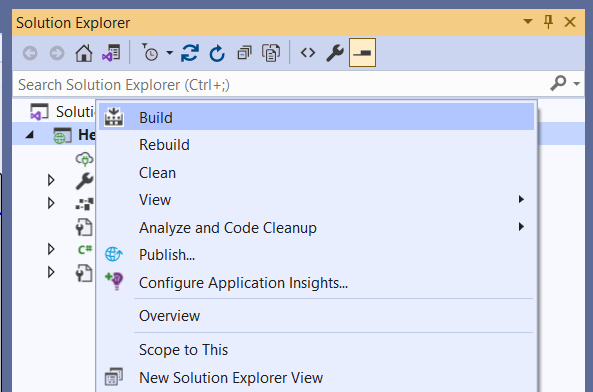
With a right click to open the context menu on our project or solution in the Solution Explorer of Visual Studio, we can identify the option to Build.
Which SDK does that compiling is worth knowing, and our guide on SDK and runtime versions, and which one a project uses explains how to tell them apart. When a project needs a particular one, we cover switching between installed SDK versions as well.
What Is “Publish” in Visual Studio?
Publishing builds the project and then assembles a folder that can be copied to a server and run there.
dotnet publish writes to bin/<Configuration>/<framework>/publish/ by default, or wherever -o points. That folder is the deployment unit.
It contains more than bin does. Content files marked for publishing come along, configuration files are included, and for a web application the static assets under wwwroot are copied too.
Publishing is also where the deployment shapes get decided. Self-contained output bundles the runtime so the target machine needs nothing installed. Single-file, trimming, and ahead-of-time compilation all apply at this step and at no other.
dotnet publish runs the build itself, so it is not a step that follows dotnet build in a script: it replaces it. Passing --no-build is how we tell it to reuse output we already produced.
We can publish a .NET application either by the CLI command or through the Visual Studio toolbar.
First, let’s explore how to publish using the CLI:
dotnet publish -c Release -o ./publish
With the dotnet publish command, we publish the project or solution found in the current working directory.
dotnet publish CLI command, please check out the Microsoft documentation.Now, let’s take a look at Visual Studio:
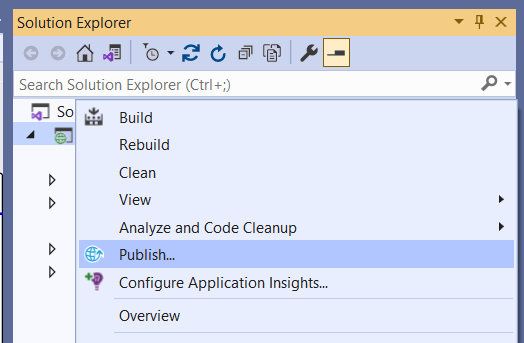
Again, with a right-click on the project or solution in the Solution Explorer, we find the option to publish via the selected item’s context menu.
Shipping a library for other projects to consume takes a different route, which our guide on packing and publishing a NuGet package walks through.
dotnet build vs dotnet publish: What Is the Difference?
dotnet publish does everything dotnet build does and then keeps going. That is the entire difference, and every other distinction follows from it.
Build stops when the code compiles. Publish continues into packaging: it gathers content and configuration files, resolves what the app needs at runtime rather than at compile time, and writes the result to its own folder.
The output folders are the clearest signal. bin/<Config>/<tfm>/ holds build output and is full of things the build needed. bin/<Config>/<tfm>/publish/ holds only what running the app requires.
Configuration differs too. Build defaults to Debug. Since .NET 8, Microsoft’s breaking-change notice records that dotnet publish “uses the Release configuration instead of the Debug configuration by default”.
Single-file, trimming, and AOT exist only at publish. dotnet build --self-contained copies the runtime too, but only publish writes the publish/ folder we deploy.
Neither replaces the other in daily work. Build is what we run constantly. Publish is what we run when the result leaves the machine.
The project’s target framework impacts the outcome of the build and publish process.
dotnet build | dotnet publish |
|
|---|---|---|
| What it does | Compiles the project and its references | Compiles, then gathers everything needed to deploy |
| Output location | bin/<Config>/<tfm>/ | bin/<Config>/<tfm>/publish/, or bin/<Config>/<tfm>/<rid>/publish/ when self-contained |
| Default configuration | Debug | Release |
| Runs the other one first | No | Yes, publish builds unless told not to |
| App settings and content files | Copied per CopyToOutputDirectory | Copied per CopyToPublishDirectory |
| Self-contained deployment | Copies the runtime with --self-contained, but writes no publish/ folder | Produced with --self-contained, ready to deploy |
| Single file, trimming, AOT | Not applied | Applied here |
| Ready to copy to a server | No | Yes |
| Typical use | Inner loop: compile, run, debug | Deployment, CI artefacts, containers |
| Skip the compile step | Not applicable | --no-build |
Defaults and paths read from Microsoft’s dotnet publish breaking-change notice and CLI reference on 9 August 2026. The Release default was introduced in .NET 8 Preview 1 and applies to projects targeting net8.0 or later.
When Should We Use dotnet build and When dotnet publish?
Use dotnet build while writing code and dotnet publish when the output has to leave the machine.
In the inner loop, build is the right command: it skips the packaging work entirely, it produces debuggable output, and dotnet run invokes it anyway.
In a CI pipeline, publish is what produces the artefact. Building and then publishing in sequence just compiles twice, because publish builds on its own.
For a container image, publish into the folder that gets copied into the final layer. The build output is not what should be shipped.
For a machine with no .NET runtime installed, publish self-contained, and accept that the output folder grows considerably in exchange for having no prerequisite.
One rule covers most of it: if a human is about to run the code, build. If a machine is about to receive it, publish.
Containers are where many developers meet dotnet publish for the first time, and our guide on writing a Dockerfile for an ASP.NET Core app shows the publish step in exactly that context.
Conclusion
A clear understanding of the difference between build and publish is essential to the successful development and implementation of programs. Publish extends the process by packaging the application and its dependencies into a deployable format, while build focusing on assembling code into binaries. Using these correctly allows developers to effortlessly distribute their applications across multiple hosting locations and optimize their deployment pipeline.
Tested with .NET 10.0.10.